

Our fans of the Fallout saga, or Skyrim if you prefer, know very well how Bethesda’s game engine is problematic and buggy.In this guide, I’ll try to list various mods that help increase frame rate, reduce loading times, and fix some bugs!
Main programs to download
Well, before we start downloading those mods, we should install various programs that are essential to achieving our goal.
1) First of all, certainly Fallout 4 Script Extender: Fallout 4 Script Extender (F4SE) (silverlock.org) is essential for compatibility with the mods we’re going to download. (Copy and paste all F4SE files into your Fallout 4 main folder)
2) I strongly recommend MOD ORGANIZER 2 for mod installation, as it is the best mod manager you can find: Mod Organizer 2 at Skyrim Special Edition Nexus - Mods and Community (nexusmods.com) Not that others aren’t good, but this allows you to download mods in a cleaner way, if we may say so. (ATTENZIONE: Some modifications we will make later are based on MO2, so I strongly urge you (again) to download this mod manager before following this guide. In any case, don’t worry — if you use another mod manager, there will be no problem!
3) Then we have Loot: https://www.nexusmods.com/skyrimspecialedition/mods/1918, a tool that will help us find “dirty” files within various mods and also organise their plugins.
Loot is not a complex program to use.
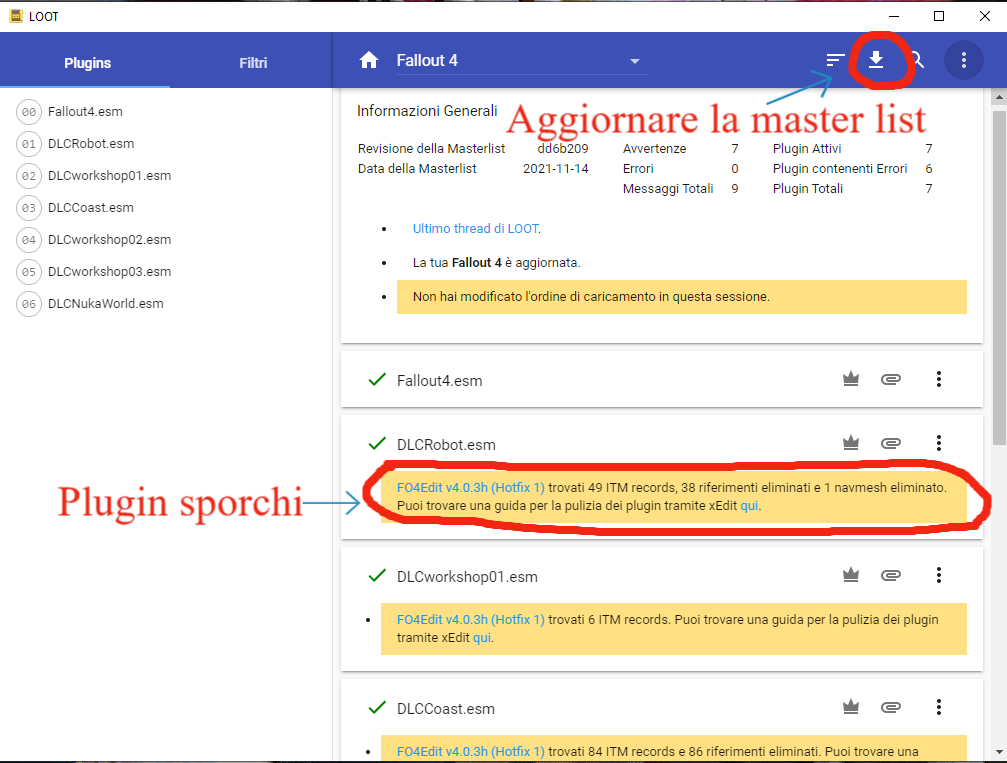
3A) To update the master list and find dirty files or other issues with the clicked mods, press this button:
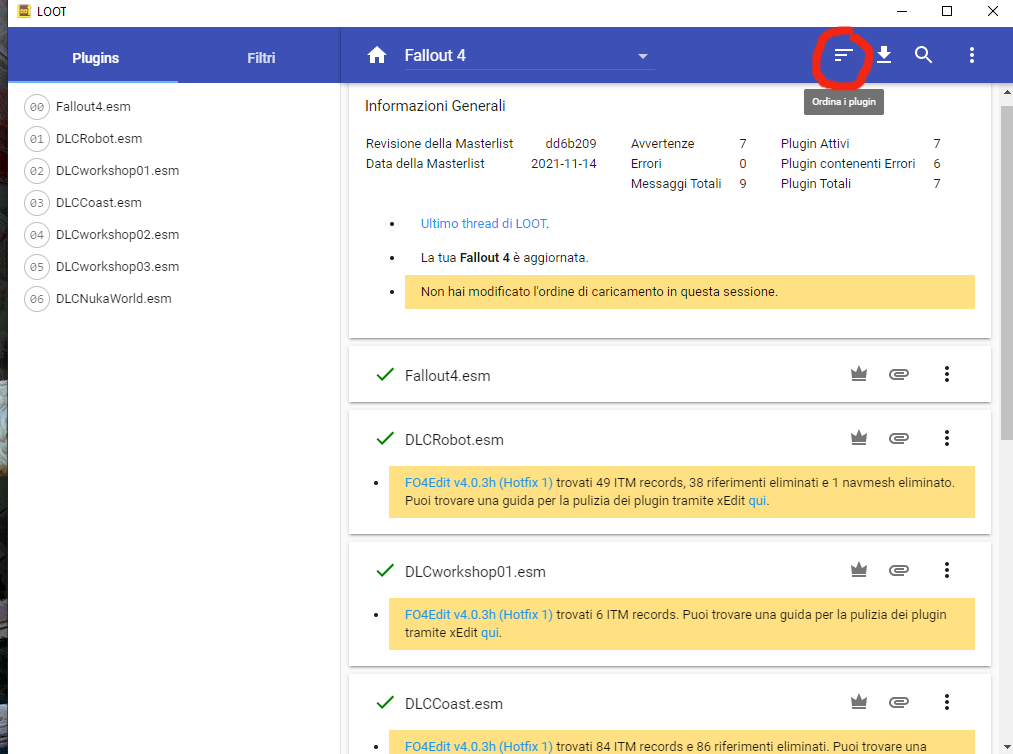
3B) To automatically reorder the plugins, click this button:
4) Another essential tool will be FO4EDIT: FO4Edit at Fallout 4 Nexus - Mods and community (nexusmods.com). FO4EDIT is a very useful program for cleaning mods, resolving conflicts, and even creating patches for our mods!
In our case, we’ll only need it to clean the dirty plugins identified by LOOT.
4A) Create a folder in a location of our choice (I recommend the desktop for convenience)
4B) Extract with WinRAR
4C) after extracting it, we click the FO4EDIT folder
4D) Once the folder is clicked, several documents, files, and applications will appear.
4E) Now click FO4EDITQUICKAUTOCLEAN
4F) Now they’ll all spit out the plugins we have inside Fallout 4 (DLC and MOD)
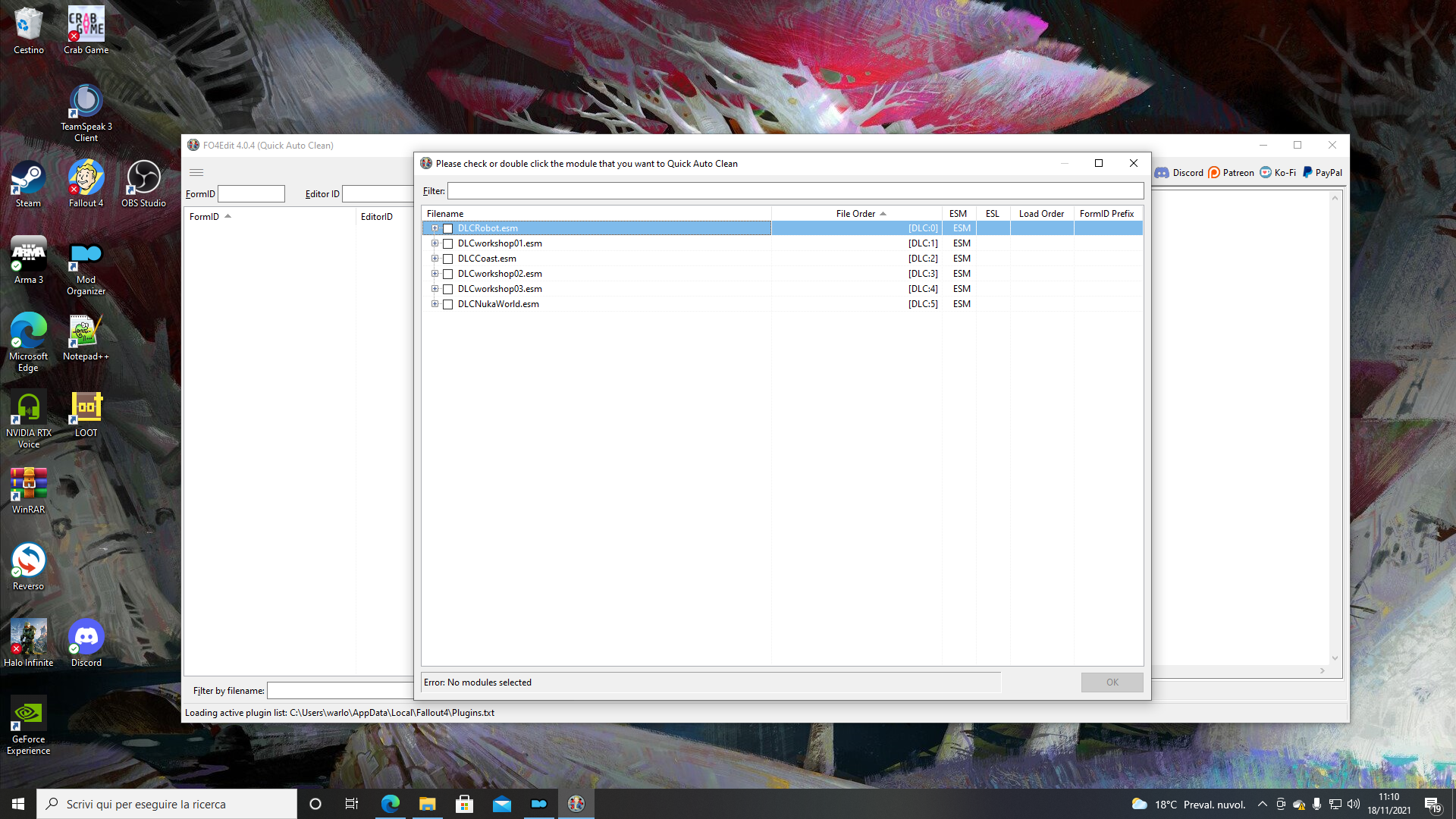
4G) Click on a plugin (WARNING: we can only clean one plugin at a time) and click OK.
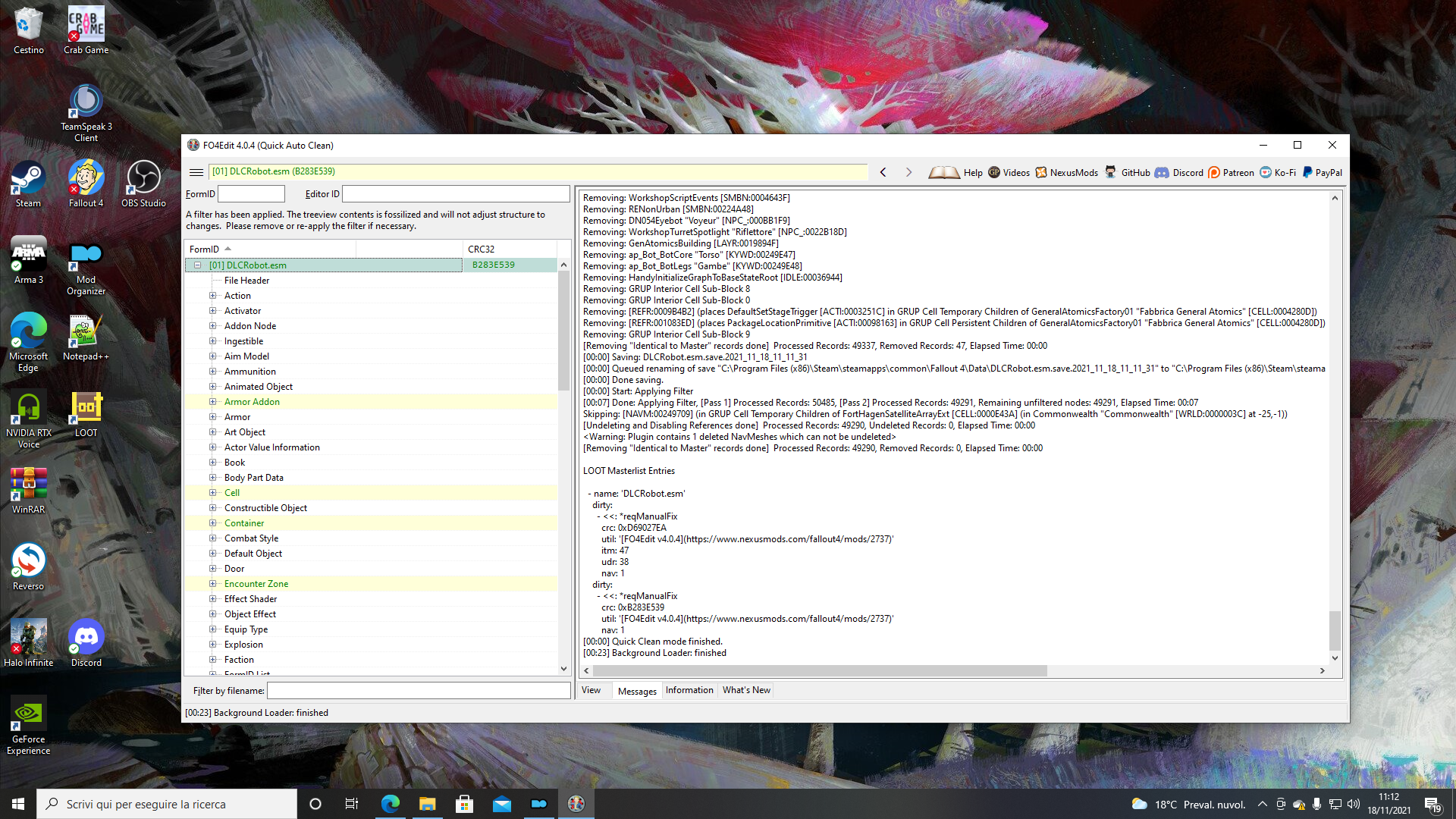
4H) Once the program has finished cleaning the plugin, this screen will appear:
Mod installation
Right, after installing the following programs, we can start with the mods! (Warning: many of these mods require manual installation due to certain issues that might arise. I’ll tell you which mod needs to be downloaded manually — don’t worry! PS: I strongly advise you to always read the description of each mod to avoid any potential crashes.)
- Unofficial Fallout 4 patch is certainly a must-have for every run, essential for resolving a lot of game issues:Unofficial Fallout 4 Patch at Fallout 4 Nexus - Mods and community (nexusmods.com)
- (DOWNLOAD MANUALLY) now we must download 3 different mods that work together and are essential for the others we will download subsequently.
2A): Main file: Plugin address library for F4SE in Fallout 4 Nexus - Mod and community (nexusmods.com)
2B): Main file if you don’t play in VR, otherwise download the 2 main files: PrivateProfileRedirector F4 - Faster game start (INI file cacher) at Fallout 4 Nexus - Mods and community (nexusmods.com)
2C): For this mod, we’ll need to modify a string inside the folder’s files; otherwise, the mod won’t work correctly. Don’t worry — it won’t be that difficult at all!
2C1): First, I strongly recommend you download NotePad++, it’s not essential but it’s definitely very handy for what we’re about to do!
Clearly, a notebook is also fine inside our computer.
2C2): Download the mod: xSE PluginPreloader F4 at Fallout 4 Nexus - Mods and community (nexusmods.com)
2C3): Now we must open the document: xSE PluginPreloader.xml with notepad++ or Notepad.
2C4): Now we must modify the following string (Line 14 if using notepad++) to: “OnThreadAttach” IF WE ARE USING MOD ORGANIZER 2. If instead you are using vortex, I recommend you read the main page of the mod!
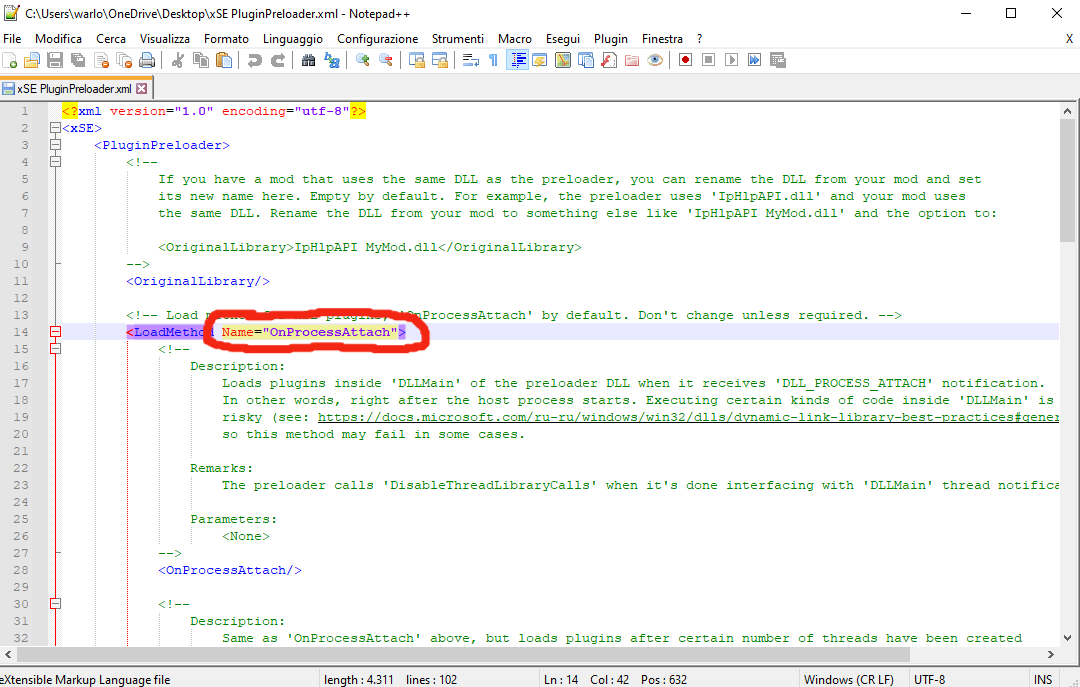
2C5): Save and exit
3) (MANUALLY BOTH MAIN FILES) Buffout 4 is an outstanding mod, it helps resolve some game engine issues, fixes certain crashes, and also adds a crash logger for abnormal shutdowns. Where can you find these files? Usually in: “Documents/My Games/Fallout 4/F4SE: Buffout 4 on Fallout 4 Nexus - Mod and community (nexusmods.com) But it’s not over there yet — we should also modify some strings within the Buffout 4 files! (Only the first main file)
3A): Well, after downloading the files and extracting them into the following folders, we must open the document: Buffout4.toml
3B) Once opened, go to [Patches] OR press CTRL+F to search directly for the string and find MemoryManager, then set it from True to False.
3B1) If you're using the controller and want to switch to the keyboard, set the inputswitch string to true
3B2) if you are using mods that change Achievements, set the Achievements string to True
3B3) If using the mod: LOOKSMENU, set the string F4EE to true
For any further clarification, I invite you to read the following article: How To Install Buffout 4 And Resolve Most Common Crash Logs at Fallout 4 Nexus - Mods and community (nexusmods.com)
4) (MANUALMENTE) Baka ScrapHeap, this mod is a solution for some mods that use heavy scripts, but it also helps Fallout 4 performance!Baka ScrapHeap - Script Memory Limit Expander at Fallout 4 Nexus - Mods and community (nexusmods.com) We will need to modify a string within the folder.
4A): After downloading the file and extracting it, we must open the BakaScreapHeap.toml document and find “ScrapHeapMult” and change it from 2 to 4
5) (MANUALLY THE FIRST FILE, IF PLAYING ON VR DOWNLOAD THE OPTIONAL FILE) High FPS Fix allows us to first increase Fallout 4's loading speed, fixes physical bugs, and decouples gameplay speed from frame rate: High FPS Physics Fix at Fallout 4 Nexus - Mods and community (nexusmods.com)
5A) In this case, we’ll also need to make a few small changes, so after downloading the file and extracting it, we must open the HighFPSPhysicsFix.ini document.
5B) Now we must set “DisableBlackLoadingScreens” and “DisableAnimationOnLoadingScreens” to true. After these changes, you’ll see the loading screens “locked”, don’t worry, the game hasn’t frozen!
Ps: I remind you to disable v-sync both from the enblocal folder and in fallout 4.ini
6) (ONLY NVIDIA USERS / DOWNLOAD MANUALLY) Weapon Debris Crash Fix fixes a game bug that occurs only with users who possess RTX/GTX graphics cardsWeapon Debris Crash Fix at Fallout 4 Nexus - Mods and community (nexusmods.com
7) (DOWNLOAD MANUALE/PRIMO FILE PRINCIPALE) Sprint stuttering fix corrects some annoying stutters while running, on certain surfaces, by setting fixed speed to 500Sprint Stuttering Fix on Fallout 4 Nexus - Mod e community (nexusmods.com)
8) (DOWNLOAD MANUALE/FILE PRINCIPALE) Fallout Priority pushes our CPU to focus primarily on Fallout 4, thereby increasing our fps!Fallout Priority - f4se plugin at Fallout 4 Nexus - Mods and community (nexusmods.com)
9) (INSTALL THE 2 MAIN FILES) Previs Repair Pack at Fallout 4 is basically a bostonfix but much bigger! cit Previs Repair Pack at Fallout 4 Nexus - Mods and community (nexusmods.com)
10) (PRIMO FILE PRINCIPALE) VATS freeze fix, fixes a bug whereby sometimes in survival mode the VATS mode would freeze.VATS Freeze Fix su Fallout 4 Nexus - Mod e community (nexusmods.com)
11) (BOTH MAIN FILES) FPS boost - FOV lets you see much more of the surrounding environment, without changing the FOV and therefore with the risk of reducing in-game performanceFPS Boost - Free FOV at Fallout 4 Nexus - Mods and community (nexusmods.com)
12) Canary Save File Monitor is not a mod that will boost our frame rate, but it will certainly save us in many situations. It will practically alert you when one of your save files has become “corrupted”, so you won’t waste time trying to recover broken saves. Canary Save File Monitor su Fallout 4 Nexus - Mod e community (nexusmods.com)
13) The Insignificant Object Remover is a mod that removes some completely useless objects from the game world, which will increase our frame rate without compromising the game’s visual quality Insignificant Object Remover at Fallout 4 Nexus - Mods and community (nexusmods.com)
14) Ultra Quality God Rays Performance Fix is one of my favourite mods, allowing you to achieve light quality on ULTRA without performance issues. Ultra Quality God Rays Performance Fix at Fallout 4 Nexus - Mods and community (nexusmods.com)
There will certainly be many other mods that will improve stability within Fallout 4, but these are absolutely essential for any run, whether you're playing without mods or with hundreds installed!
I hope this guide has been useful for some of you! Thank you for reading this far.